A workspace for AI coworkers.
Create named agents, give each a job and workspace, and bring them together to complete real tasks. Suparagent keeps conversations, memory, routines, and approvals in one place. Use the desktop app or host the server yourself; the hosted service is a separate product.
Bring your own engine and provider account. Suparagent does not include a model or model subscription.
Desktop downloads · Self-hosting · Hosted app · Watch the demo · Discord

Status: Suparagent is in active development. Desktop releases, self-hosting, agent computers, and newer team features are still evolving. Review known limitations before relying on them for important work.
- Quick start
- What you can do
- Ways to run Suparagent
- Hosted plans
- Engines, data, and costs
- Example: prepare a weekly project briefing
- Scheduling tasks
- Known limitations
- Guides
- Support
- Contributing
- License
The desktop app runs from a source checkout. It needs Node.js 22 or newer, uv, and at least one engine available on the same computer. For a CLI engine, install it and sign in before opening Open Duet. You can also configure an API-based engine in Settings → Engines. Docker is only needed for the optional isolated agent computers.
git clone https://github.com/Anil-matcha/suparagent.git
cd suparagent/desktop
npm run app
On first launch, choose an engine, workspace, and approval mode. Then:
- Open Settings → Engines and confirm an engine is ready.
- Create an agent with a name, a clear job, and a workspace.
- Start a chat. Choose Ask first to pause for approval before actions that need it.
- Add teammates or create a routine when you want to split up or repeat work.
See the Releases page for current desktop installers and the changelog for changes. Installers are experimental and unsigned. The assisted update flow offers a SHA-256-verified installer for you to open; it does not install updates automatically. The release-to-release update path has not been verified end to end.
- Create agents and teams. Give agents a name, role, engine, workspace, memory, and approval settings. A lead can delegate work to specialists or coordinate agents in shared rooms. Team leads can use Claude or Codex. See teams and delegated work.
- Keep useful context. Agents can save notes, recall relevant notes and conversations, and search their history. You can review and edit what they remember. See memory.
- Run work on a schedule. Create routines for scheduled, webhook, or manual runs. Review each result and answer requests for approval; a routine never approves an action by itself. See routines.
- Choose how much freedom agents have. Use Ask first, Accept edits, Approve for me (Claude, Codex, and Cursor), or Plan only. Review tool activity and approval decisions in the app.
- Connect tools and apps. Connect services such as GitHub, Gmail, and Google Calendar through your own Composio key, then grant access to selected Claude or Codex agents. Changes wait for your approval. Add individual tools from the MCP Marketplace. See connected apps.
- See what needs your attention. The Today view gathers approvals, questions, routine outcomes, engine failures, and due tasks. It can show read-only Gmail and calendar items. See everyday features.
- Plan and follow work. Use a task board and calendar to assign work, schedule one-time runs, and review conversations and attempts. See tasks and calendar.
- Reuse instructions. Save skills and start agents from templates. Skills are instructions you choose for a message. See skills and templates.
- Use it from your phone. Pair the phone app with your own server to chat, stop an answer, allow or deny a tool call, or create and edit agents and rooms. See the phone app guide.
- Work with files and history. Search conversations, attach text and images, import audio for transcription with your consent and credentials, browse or download workspace files, and export your history.
| Desktop app | Self-hosted server | Hosted web app | Development checkout | |
|---|---|---|---|---|
| Best for | A personal workspace on your computer | Keeping your agents and routines available on a server you control | Using the separately operated Suparagent service | Contributing or changing Suparagent |
| Where workspace data lives | Your computer | Your server | An account-specific hosted workspace | Your development machine or configured database |
| Start here | Quick start | Self-hosting guide | suparagent.ai | Development setup |
| Main requirements | Node.js 22+, uv, and an engine | Linux server, HTTPS, Docker or Node.js and uv, and an engine | An account and an AI provider account | Node.js, uv, and Docker if you use PostgreSQL |
| Status | Experimental | Experimental; single owner | Separate hosted product | — |
The hosted service is separate from the open-source desktop and self-hosted core. Hosted account, workspace, and billing data are handled by Suparagent; see the hosted service's Privacy Policy and Terms.
The hosted preview lets you use your own Boat key for sandbox compute. Paid plans use compute operated by Suparagent, so you do not need to supply a Boat key. In both cases, you bring your AI provider account and pay that provider for model usage.
| Plan | Monthly Suparagent price | Included running compute | Machine disk capacity |
|---|---|---|---|
| Free preview | $0 | Billed to your Boat account | Small profile |
| Starter | $15 | 100 hours per billing period | 51 GB |
| Standard | $49 | 300 hours per billing period | 51 GB |
| Pro | $99 | 720 hours per billing period | 111 GB |
Paid-plan compute hours count while the sandbox is running, including idle time. At the limit, it stops until the next billing period or a plan change; compute overages are not charged. The disk value is the selected machine's capacity, not a separate storage quota. A stopped sandbox's disk is subject to the provider's retention period, so export important files before a paid plan ends. Paid checkout is enabled for hosted accounts; see the Suparagent pricing page for current plans.
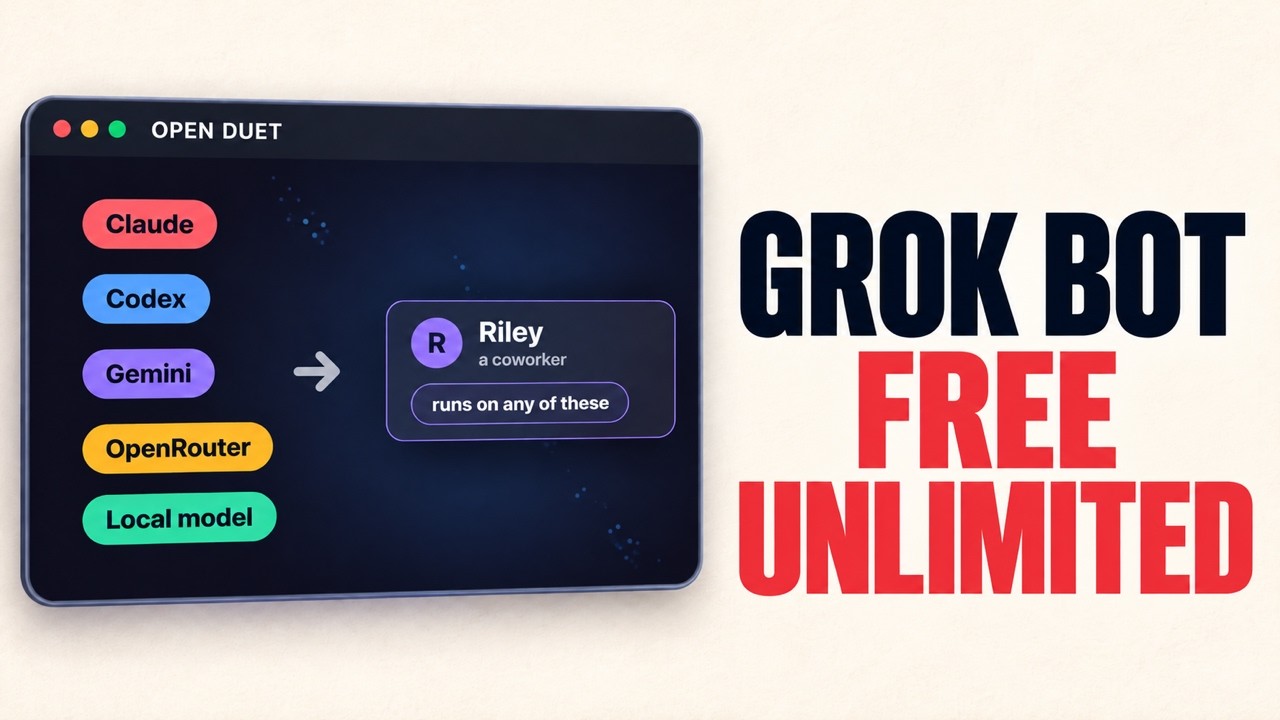
Connect an engine you already use: Claude Code or Codex CLI, Gemini CLI, Google Gemini through Antigravity, Cursor, another command-line agent using the Agent Client Protocol (ACP), OpenRouter, or an OpenAI-compatible API such as Ollama or LM Studio. Available tools vary by engine; image input and agent computers, for example, are not supported by every engine. See engine setup and capabilities.
For desktop and self-hosted use, conversations, agent notes, routines, and settings are stored in that instance's local data folder or server database. Workspace files stay in the folders you assign to agents. API keys saved through Suparagent are encrypted there; command-line sign-ins remain with the engine installed on that machine.
When an agent answers, the selected engine receives the prompt and the context needed for that turn. This can include text you attach, relevant notes, and workspace content the engine reads. If the engine is a hosted service, that information is handled under that provider's terms. You bring the provider account, CLI sign-in, or API key; model usage may cost money.
Create a lead agent and specialists, such as a researcher and an editor. Give them the same project workspace, and set the lead's engine to Claude or Codex. Ask the lead to prepare a briefing from the notes and reports in that folder.
The lead can split the request into smaller tasks and hand them to the specialists. Their work runs in separate conversations, then returns to the lead to assemble. Follow along in chat and approve actions when the settings require it. Once the process works well, make it a weekly routine and review each run in the app.
Routines run prompts on local agents on a schedule, by webhook, or on demand. They run in the backend, so the backend must stay running. The original Telegram bot and Boat sandbox task flow are optional and separate from the agent workspace. See backend scheduling details and environment settings.
- Suparagent is early and changing. The self-hosted server is experimental and intended for one owner with paired devices, not a multi-user organization.
- Team delegation is new; lead agents need to use Claude or Codex.
- The phone app has been tried on an Android emulator and an Android phone, not on iOS. It has no push notifications or store release.
- Docker computers, browser tools, and the macOS native desktop preview are experimental and opt-in.
- Desktop installers are unsigned and have limited platform verification. See desktop setup details.
- Connected apps are reached through Composio and tested against a fake Composio service, not yet the real service. Only Claude and Codex agents can use them, and changes wait for your approval.
- The MCP Marketplace, hosted cloud computers, quiet routine results, and audio transcription have not had live-service or packaged-app qualification.
Getting started
Agents and work
- Teams and delegated work
- Agent settings and chat management
- Memory and context
- Routines
- Tasks and calendar
- Everyday features: search, attachments, audio, and Today
Tools and customization
- Connected apps
- App language settings
- Skills and templates
- Agent computers, native desktop, and browser tools
- Features and capability matrix
Project
- Join the Suparagent Discord community for questions and discussion.
- Report bugs and request features in GitHub Issues.
- For hosted account or billing questions, use the contact link on suparagent.ai.
Issues and pull requests are welcome. Start with the contributing guide.
To propose a third-party app for the in-app MCP Marketplace, add a Community
manifest under marketplace/plugins/community/, regenerate
marketplace/catalog.json, and submit both in a pull request. See the
MCP Marketplace submission guide for the
manifest requirements and validation steps.
Suparagent is licensed under the Apache License 2.0.